

Your team sat through the accessibility webinar. Everyone nodded. Six weeks later the next audit comes back with the same missing form labels, the same contrast failures, the same custom dropdown nobody can operate with a keyboard.
The training wasn’t wrong. It was aimed at nobody in particular. A designer and a QA tester need completely different things from an hour of accessibility instruction, and a session built to satisfy both usually changes neither person’s behavior on Monday.
Accessibility training for product teams works when it’s mapped to the decisions each role actually makes. This guide breaks down what every role needs to learn, how much time it takes, which roles get skipped most often, and how to tell whether any of it worked.

Key Takeaways
- Generic awareness training raises sympathy and changes nothing. Role-specific training changes the decisions people make in their own tools.
- The most commonly skipped roles are product managers and content authors, and they’re the ones who set the constraints everyone downstream inherits.
- Measure training by repeat audit findings, not course completions. Completion rates tell you attendance, not capability.
Table of Contents
1. What should accessibility training for product teams actually cover?
2. Why does generic accessibility training fail to change anything?
3. Which accessibility skills does each role actually need?
4. Which roles get skipped, and what does that cost you?
5. How much training does each role really need?
6. How do you know the training actually worked?
7. When should you train instead of hiring or outsourcing?
8. Which mistakes do teams make with accessibility training?
9. Frequently Asked Questions
[IMAGE 1: after the Table of Contents. Illustration of a product team around a table, each person with a different visual overlay above them representing their accessibility responsibility: a contrast ratio for the designer, a code snippet for the developer, a checklist for QA, a heading structure for the content author. ALT: “Accessibility training for product teams showing different responsibilities by role”]
What should accessibility training for product teams actually cover?
Effective accessibility training has two layers. A short shared foundation gives everyone the same vocabulary, the same understanding of who assistive technology users are, and the same view of what the law requires. On top of that sits role-specific instruction tied to the decisions each person actually makes, taught with examples from your own product rather than generic demos.
The foundation layer is small, perhaps two hours, and it’s genuinely universal. Everyone needs to know what a screen reader does, what keyboard-only navigation looks like, and why WCAG 2.2 Level AA is the target most regulations point to.
Everything after that should differ by role. A visual designer never writes an aria-label, and a backend engineer never picks a color token. Teaching both people the same eighty slides guarantees that most of it is irrelevant to each of them.
The best training also uses your own audit findings as the teaching material. Abstract WCAG criteria are forgettable. A screenshot of your own checkout form failing a screen reader test is not.
Why does generic accessibility training fail to change anything?
Because awareness and capability are different problems, and most training only solves the first one. People leave a general session convinced accessibility matters and still unsure what to do differently in their next ticket. Motivation without a specific behavior change evaporates within a sprint.
There’s a related myth worth correcting here, because it drives a lot of misdirected training budget. YYou run a scan on a branch you were proud of and get back 412 violations. Half of them point at a component library you didn’t write. The ticket says “fix accessibility,” the sprint ends Friday, and nobody has told you which of those 412 things actually blocks a real person from checking out.
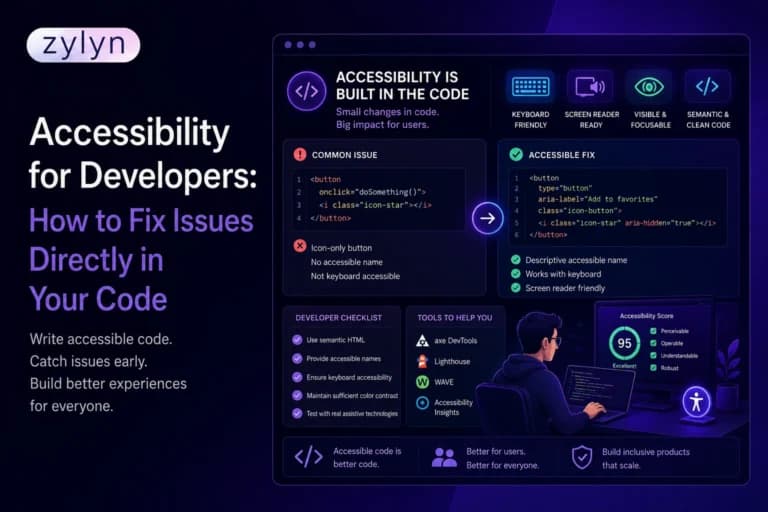
That’s the gap this guide closes. Accessibility for developers isn’t a compliance briefing, it’s a set of code changes you can make in your editor today, in an order that clears the highest-impact barriers first.
You’ll get the six failure patterns that account for most violations in the wild, the exact markup that fixes each one, the framework traps that keep regenerating them, and the CI setup that stops them coming back next sprint.
Key Takeaways
- Six error categories cause the overwhelming majority of detected WCAG failures, and every one of them is a small, local code fix.
- Automated scanners catch roughly a third of real issues, so keyboard and screen reader passes are not optional extras.
- Fixing issues at the component and design-token layer clears hundreds of instances at once, which is why fix order matters more than fix volume.
Table of Contents
1. What does accessibility for developers actually mean in code?
2. Which accessibility issues appear most often in real codebases?
3. How do you fix the most common accessibility issues directly in your code?
4. How do you fix accessibility issues in React and other component frameworks?
5. Which accessibility issues can’t a scanner find for you?
6. In what order should you fix accessibility issues?
7. How do you stop accessibility bugs from coming back?
8. Which accessibility mistakes do developers make most often?
9. Frequently Asked Questions
[IMAGE 1: after the Table of Contents. Screenshot-style graphic of a code editor showing a <div onClick> on the left and a native <button> on the right, with an accessibility tree panel beside each. ALT: “Accessibility for developers: inaccessible div button compared with a semantic HTML button in a code editor”]
What does accessibility for developers actually mean in code?
Accessibility for developers means writing HTML, CSS, and JavaScript so that someone using a screen reader, a keyboard, a magnifier, or voice control can complete the same task as anyone else. It isn’t a separate build. It’s the same interface, coded so that assistive technology can read its structure, name every control, and operate it without a mouse.
Assistive technology never sees your design. It parses your DOM and builds an accessibility tree from it, so the name, role, and state of every control come from your markup. When a control has no accessible name, it’s announced as “button,” and the user has no idea what it does.
That’s the whole model. Your markup is the API that assistive technology consumes, and most accessibility bugs are just cases where that API returns nothing useful.
The Web Content Accessibility Guidelines are the technical standard behind this, organized around four principles: perceivable, operable, understandable, robust. Level AA is the conformance target that almost every regulation points to, and the WCAG 2.2 requirements are the version worth building against now.
Which accessibility issues appear most often in real codebases?
The same six categories dominate every large-scale scan, and they’ve barely shifted in years. WebAIM’s annual Million report scans a million home pages, and low contrast text alone shows up on roughly four out of five of them.
Here’s what those categories look like from the code side.
| Failure | WCAG criterion | What causes it in code | The fix |
|---|---|---|---|
| Low contrast text | 1.4.3 Contrast (Minimum) | Grey-on-white design tokens set below 4.5:1 for body text | Correct the token, not the instance. One variable change clears every page. |
| Missing alt text | 1.1.1 Non-text Content | <img> shipped with no alt attribute at all | Add descriptive alt for informative images, alt=”” for decorative ones. |
| Missing form labels | 1.3.1, 3.3.2 | Placeholder text used instead of a real label | <label for=”id”> on every control, always. |
| Empty links | 2.4.4 Link Purpose | Icon-only links wrapping an <svg> with no text | Add aria-label or visually hidden text describing the destination. |
| Empty buttons | 4.1.2 Name, Role, Value | Icon buttons with no accessible name | aria-label=”Close” or a visually hidden span inside the button. |
| Missing document language | 3.1.1 Language of Page | <html> shipped without a lang attribute | <html lang=”en”> in your base template. |
Look at that fix column and notice something. Five of the six are one attribute, and the sixth is one variable. The volume in your scan report is almost never a measure of how much work is ahead of you.
How do you fix the most common accessibility issues directly in your code?
Fix them at the element level with native HTML wherever possible, and reach for ARIA only when no native element does the job. Native elements arrive with focus behavior, keyboard activation, and correct announcement already built in, which is work you’d otherwise have to write and maintain yourself.
Start with the div-as-button pattern, which is the single most common source of downstream failures.
<!– Broken: not focusable, no keyboard activation, announced as nothing –>
<div class=”btn” onclick=”save()”>Save</div>
<!– Fixed –>
<button type=”button” onclick=”save()”>Save</button>
That one swap gives you tab focus, Enter and Space activation, and a correct screen reader announcement without a single extra line. The rule of thumb: if it does something, it’s a <button>. If it goes somewhere, it’s an <a href>.
Icon-only controls need an accessible name, because the SVG inside them contributes nothing.
<!– Broken: announced as “button” –>
<button><svg viewBox=”0 0 24 24″><path d=”…”/></svg></button>
<!– Fixed –>
<button aria-label=”Close dialog”>
<svg viewBox=”0 0 24 24″ aria-hidden=”true”><path d=”…”/></svg>
</button>
Forms are where accessibility failures do the most commercial damage, because an unlabeled checkout field doesn’t degrade the experience, it ends it. Placeholder text is not a label. It vanishes the moment someone types, and it isn’t reliably announced.
<!– Broken –>
<input type=”email” placeholder=”Email address”>
<!– Fixed –>
<label for=”email”>Email address</label>
<input type=”email” id=”email” autocomplete=”email”
aria-describedby=”email-error” required>
<p id=”email-error” role=”alert”>Enter an email address including @</p>
[IMAGE 2: after the forms example. Side-by-side screenshot of a form field announced by a screen reader, showing “edit text, blank” versus “Email address, edit text, required”. ALT: “Screen reader output for an unlabeled form field compared with a properly labeled input”]
Focus indicators are the other quick win, and the one most often removed on purpose. Somebody deletes the default outline because it looks untidy, and every keyboard user immediately loses track of where they are on the page.
/* Broken */
:focus { outline: none; }
/* Fixed: style it, never remove it */
:focus-visible {
outline: 3px solid #0b57d0;
outline-offset: 2px;
}
Color contrast belongs in your token layer, not your component files. If body text sits below 4.5:1 against its background, changing the variable once fixes every instance across the product, which is why contrast usually looks like a catastrophe in a scan report and takes twenty minutes to resolve.
How do you fix accessibility issues in React and other component frameworks?
Component frameworks concentrate accessibility problems rather than creating new ones. One inaccessible Button component renders four hundred violations, and one fix clears all four hundred, so remediation in a component codebase is far cheaper than the raw violation count suggests.
Single-page apps do introduce two genuine problems that server-rendered sites don’t have. The first is route changes: the browser doesn’t reload, so a screen reader is never told the page changed, and focus stays wherever it was.
// On route change, move focus to the page heading
useEffect(() => {
headingRef.current?.focus();
}, [pathname]);
// The heading needs to be programmatically focusable
<h1 ref={headingRef} tabIndex={-1}>{title}</h1>
The second is modals. A dialog that doesn’t trap focus lets keyboard users tab straight out into the page behind it, still visually covered by an overlay they can no longer see or escape.
<dialog ref={dialogRef} aria-labelledby=”dialog-title” aria-modal=”true”>
<h2 id=”dialog-title”>Confirm deletion</h2>
{/* return focus to the trigger on close */}
</dialog>
The native <dialog> element handles focus trapping and Escape-to-close for you in current browsers, which is a good example of the general principle: check whether the platform already solved it before you add a library.
For everything else, eslint-plugin-jsx-a11y catches a meaningful slice of these problems at the moment you type them, which is roughly a hundred times cheaper than catching them in a report three months later.
Not sure how many of these patterns are already in your codebase? Run a free accessibility scan on any page and get a prioritized list of WCAG 2.2 issues with the code-level fix attached to each one.
Which accessibility issues can’t a scanner find for you?
Roughly two thirds of them. Automated tools are excellent at detecting the presence or absence of things in markup, and structurally incapable of judging whether what’s there makes sense to a human being.
| What automation catches | What it can’t judge |
|---|---|
| Missing alt attributes | Whether the alt text describes the right thing |
| Contrast ratios below threshold | Whether color alone carries meaning in context |
| Missing form labels | Whether the label matches what the field expects |
| Missing lang attribute | Whether the reading order matches the visual order |
| Invalid ARIA attribute values | Whether the ARIA describes the widget’s actual behavior |
| Empty buttons and links | Whether a keyboard user can complete the checkout flow |
The two manual passes that close most of that gap take about ten minutes each. Unplug your mouse and tab through a critical flow end to end, watching for controls you can’t reach, focus rings that disappear, and traps you can’t escape. Then turn on VoiceOver with Cmd + F5, or NVDA on Windows, and run the same flow listening rather than looking.
Doing this on your own pull request before review is the highest-value accessibility habit there is. It surfaces the problems that no scan report will ever show you, and it takes less time than writing the ticket to investigate them later.
For flows where the legal and commercial stakes are high, a full WCAG 2.2 audit combining automated and manual testing is what actually establishes conformance. Scanners establish a floor, not a ceiling.
In what order should you fix accessibility issues?
Fix by blast radius, not by severity label. A scan report sorts by rule and count, which tends to bury the one fix that would clear three hundred instances underneath forty unique ones that appear on a single page each.
Work through four layers in sequence. Start with design tokens and global styles, where contrast values and focus indicators live, because these are single-variable changes with product-wide reach. Move next to shared components, the buttons, inputs, modals, and cards that every page composes from, since one correct component retires an entire violation category.
Third, take the critical user flows: sign-up, search, checkout, account recovery. An issue on a page nobody visits is a lower priority than a mislabeled field between a customer and a completed purchase, regardless of what severity the tool assigned it.
Only then work through the long tail of page-specific issues. Teams that invert this order spend a quarter fixing individual pages while their component library keeps producing new violations faster than they close old ones.
How do you stop accessibility bugs from coming back?
Put a gate in the pipeline, because remediation without prevention is a treadmill. Every codebase that has been “fixed” twice was fixed without one.
- Add a linter to the editor. Install eslint-plugin-jsx-a11y or the axe accessibility linter so violations surface as you type, before the code is even committed.
- Baseline your current violations. Record today’s count and fail builds only on new issues. A gate that fails on day one gets switched off by day three.
- Run axe-core in your existing test suite. It plugs into Jest, Playwright, and Cypress, and adds seconds rather than minutes to a run.
- Add three lines to your PR template. Keyboard-only pass done, focus visible throughout, new controls have accessible names. Reviewers check what the template asks them to check.
- Re-scan on a schedule, not on panic. Monthly scans catch content-authored regressions like missing alt text on new uploads, which no linter will ever see.
None of this requires a new tool budget or a dedicated accessibility engineer. It requires the checks to live where the work already happens, which is the whole reason code-level accessibility remediation outperforms bolt-on fixes over any timeframe longer than a quarter.
[IMAGE 3: after the numbered list. Original diagram showing the four remediation layers as concentric bands: design tokens, shared components, critical flows, page-specific issues, with violation counts shrinking at each layer. ALT: “Accessibility remediation priority order for developers, from design tokens to page-specific fixes”]
Which accessibility mistakes do developers make most often?
- Reaching for ARIA before HTML. ARIA changes what assistive technology announces, not how the element behaves. Adding role=”button” to a div gives you the announcement and none of the keyboard support, which is worse than the plain div because now the promise is broken.
- Deleting the focus outline. Removing :focus styling for visual polish makes the interface unusable for anyone navigating by keyboard. Style it instead, and use :focus-visible so it only appears for keyboard interaction.
- Using placeholder text as a label. It disappears on input, isn’t reliably announced, and usually fails contrast requirements as well. It’s three failures in one attribute.
- Fixing the report instead of the flow. Clearing every automated violation on a page whose checkout is unusable by keyboard produces a clean report and an unusable product. The report is a proxy, not the goal.
- Using a positive tabindex. Values above zero override the natural document order and create tab sequences nobody can predict, including you six months later. Use 0 and -1 only.
- Installing an overlay and calling it done. Overlay widgets sit on top of your markup and cannot repair what’s underneath. They don’t resolve the underlying failures, and they haven’t held up as a defense.
Frequently Asked Questions
What is accessibility for developers?
It’s writing HTML, CSS, and JavaScript so people using screen readers, keyboards, magnifiers, or voice control can complete the same tasks as everyone else.
Can automated tools fix all accessibility issues?
No. Scanners reliably detect roughly a third of WCAG failures. Keyboard order, focus behavior, and whether labels make sense still need manual testing.
Should I use ARIA or semantic HTML first?
Semantic HTML, always. A native button gives you focus, keyboard activation, and the correct screen reader announcement with no extra code to maintain.
What is the most common accessibility issue in code?
Low contrast text. It appears on the large majority of pages scanned, and it usually traces back to design tokens rather than one-off styles.
How do I test keyboard accessibility?
Unplug your mouse and Tab through the whole flow. Every control should be reachable, activate with Enter or Space, and show a visible focus ring.
Which screen reader should developers test with?
NVDA with Firefox on Windows and VoiceOver with Safari on Mac cover most real usage. Use TalkBack for Android testing.
Does accessibility affect SEO?
Yes, indirectly. Semantic headings, alt text, descriptive link text, and correct language attributes all help crawlers parse your pages accurately.
Is an accessibility overlay a valid fix?
No. Overlays sit on top of your markup and cannot repair the underlying code. They aren’t a substitute for fixing the source.
How do I add accessibility testing to CI?
Run axe-core inside your existing test runner and fail builds on new violations only. Baseline current issues first so the gate stays useful.
What does WCAG 2.2 Level AA mean for developers?
It’s the conformance target most laws reference. It covers contrast, keyboard operation, labels, visible focus, and minimum target sizes.
Where do you go from here?
Accessibility for developers comes down to three habits rather than three hundred tickets. Use the native element before you reach for ARIA, give every control a name and a visible focus state, and test one critical flow with the keyboard before you open the pull request.
Fix in order of blast radius, starting with tokens and shared components, and the violation count in your next report drops faster than the effort suggests it should. Then put a gate in CI so the number stays down instead of climbing back.
The teams that find this sustainable aren’t the ones with the biggest accessibility budget. They’re the ones who moved the check to the moment the code is written, when a fix costs one line instead of one sprint.
Ready to see exactly what your codebase needs? Book a discovery call with the Zylyn team or get an accessibility audit with code-ready fixes that your developers can action straight from the report.